Davis LSFD Fire Station MLO for FiveM
Davis firehouse with an apparatus bay downstairs and bunks, kitchen, day room and the chief's office above it.
$15.00

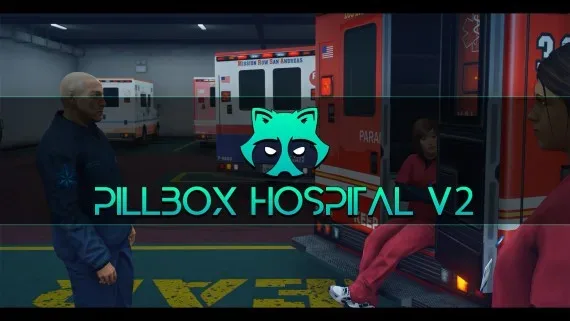
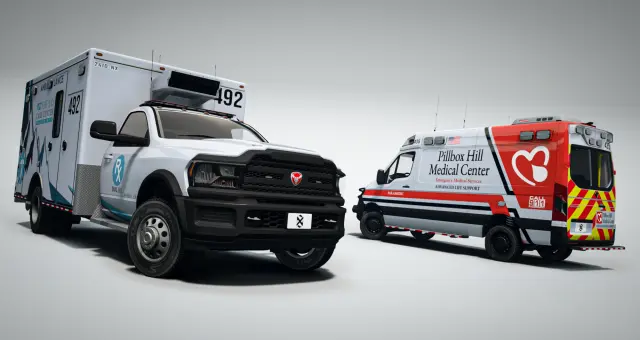
Pillbox Hill with its doors unlocked: reception, treatment bays, operating rooms and the staff corridors behind them.
Pillbox Hill is where most cities send every injured player, so the interior earns its place faster than almost any other map on a server. This Gabz version unlocks reception, the treatment floor and the staff side of the building.
The check-in counter faces the street entrance, so a civilian who walks in wounded has somewhere to be seen rather than a locked door to stand at. Behind it, treatment bays and operating rooms run off corridors wide enough to push a stretcher down without clipping a wall. Offices, a break room and lockers sit to one side for the people on shift, and ambulances come in at the rear.
Bed and stretcher positions land close to where qb-ambulancejob and esx_ambulancejob already look for them, so configuration is mostly lifting coordinates out of the rooms rather than reworking your medical loop. Revives, injury states, billing and duty points stay exactly as you have them — what changes is the building they happen inside.
None of the map is framework-specific. An ESX, Qbox or QBCore city installs it the same way, and the archive carries the hospital alongside the common map data pack it needs.
Use the documentation included with the download as the final authority. This plan helps you prepare a rollback, install in the right order, and verify the resource before it reaches players.
Open the supplied documentation before moving files or changing the database. Build the install order from the package, not from assumptions.
Ready when Every dependency and required file has a place in your install plan.
Prepare the server so the change can be reversed cleanly if the resource conflicts with your current stack.
Ready when You can restore the previous database, files, and configuration.
Apply only the changes supplied for this resource, keeping dependency and startup order intact.
Ready when The resource starts without missing files, exports, tables, or dependencies.
Restart the test server, watch both server and client consoles, and exercise the resource before opening it to players.
Complete when The intended flow works twice with no new console errors.
Pillbox Hospital MLO for FiveM EMS
Contact support
Reviews are moderated before appearing. Purchased the product? Your review gets a VERIFIED badge automatically.
Davis firehouse with an apparatus bay downstairs and bunks, kitchen, day room and the chief's office above it.

A high-end showroom up in Rockford Hills, garage attached, sized to trade in the expensive end of the market.
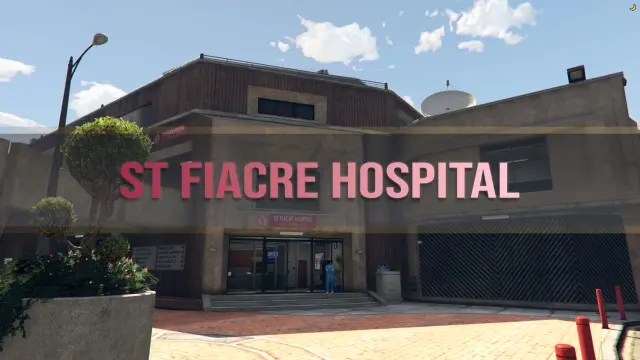
A two-floor medical centre with wards, three receptions, department offices, a gym, meeting rooms and its own garage.
A club with enough rooms to staff — stage, bar, DJ booth, private rooms, dressing room and back office.
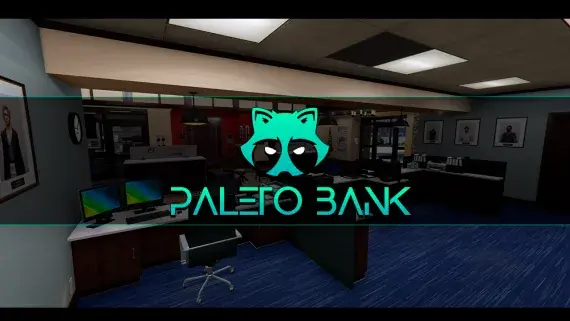
The Blaine County branch in Paleto Bay — a compact banking hall and vault an hour from the nearest real police response.
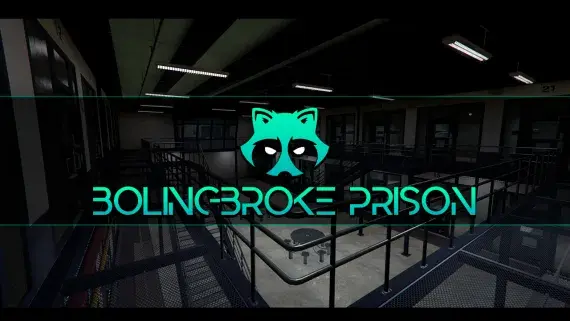
A penitentiary players stay logged in for: processed at intake, housed on a block, fed, visited and treated without leaving the fence.
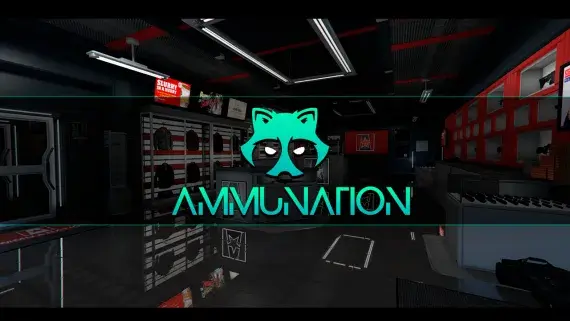
Eleven AmmuNation branches in three interior sizes, each with a counter worth standing at.
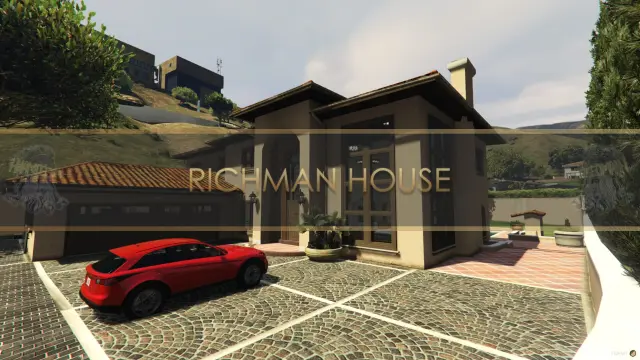
A two-floor Mediterranean villa in the city's wealthiest postcode, with its own garage and a balcony over the street.
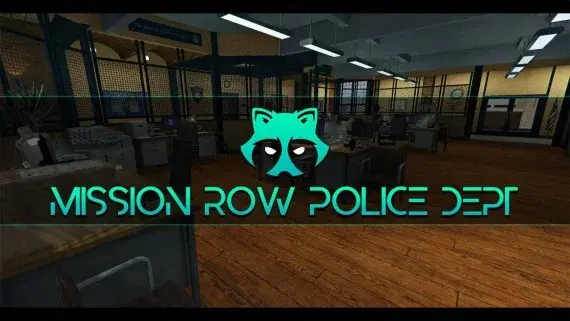
The whole Mission Row station opens up — lobby, booking desk, cells, evidence, armoury and a rooftop helipad.
 Sale
Sale

The Premium Deluxe glass showroom, opened up: display floor, sales desks and offices for a dealership with an actual address.
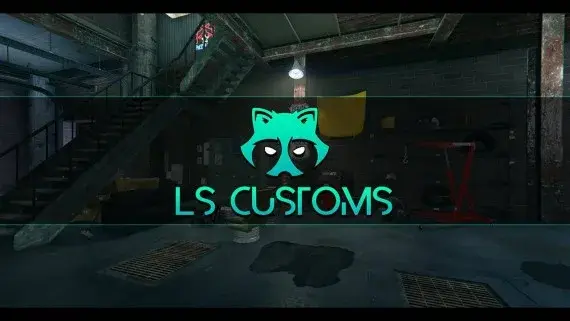
Los Santos Customs as a workshop you can walk into, with bays wide enough to work a car properly.
Pillbox Hospital MLO for FiveM EMS is a FiveM resource. Review the product details, requirements, and compatibility notes before ordering.
Use the included files and documentation as the source of truth for installation, configuration, dependencies, and any stated performance information.